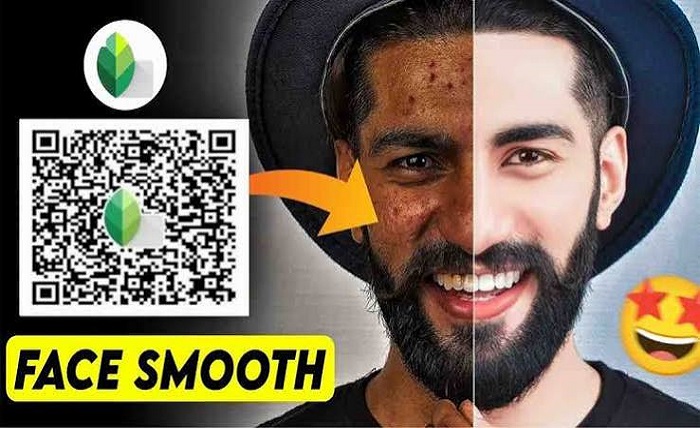
Photo editing has become an essential part of content creation, whether you’re posting on Instagram, Facebook, YouTube, or maintaining a personal photography portfolio. One of the most exciting features available in Google’s Snapseed app is Snapseed QR Code Photo Editing, which allows users to save editing styles as QR codes and instantly apply them to other images.
Instead of repeating the same editing process over and over again, Snapseed QR Code Photo Editing helps photographers and creators save time while maintaining a consistent editing style. Whether you want cinematic colors, aesthetic portraits, travel edits, or moody landscapes, QR codes make editing incredibly simple.
In this comprehensive guide, you’ll learn everything about Snapseed QR Code Photo Editing, including how it works, how to create QR codes, how to scan them, and tips for getting professional-quality results.
What Is Snapseed QR Code Photo Editing?
Snapseed QR Code Photo Editing is a unique feature that allows users to save their editing adjustments into a QR code. That QR code can then be scanned by anyone using Snapseed to instantly apply the exact same edit to another image.
Instead of manually adjusting brightness, contrast, curves, saturation, white balance, and selective edits every time, Snapseed QR Code Photo Editing packages all those adjustments into a single QR code.
Benefits include:
- Faster editing
- Consistent color grading
- Easy sharing
- Professional workflow
- Perfect for social media creators
Whether you’re a beginner or an experienced editor, Snapseed QR Code Photo Editing makes editing more efficient and enjoyable.
Why Snapseed QR Code Photo Editing Is So Popular
The popularity of Snapseed QR Code Photo Editing has grown rapidly because creators love achieving professional-looking edits with minimal effort.
Some major reasons include:
- One-click editing
- Easy sharing with friends
- Consistent Instagram feed
- No advanced editing skills required
- Completely free feature
Many influencers create custom QR codes for portrait photography, travel photos, food photography, and landscape editing. Using Snapseed QR Code Photo Editing, beginners can achieve premium-looking results in just a few seconds.
Additionally, photographers often create unique editing presets that become their signature style, making QR codes an excellent branding tool.
How to Create a Snapseed QR Code Photo Editing Preset
Creating your own Snapseed QR Code Photo Editing preset is straightforward.
Follow these steps:
- Open Snapseed.
- Import your photo.
- Edit the image using your preferred tools.
- Tap the menu icon.
- Select QR Look.
- Choose Create QR Look.
- Save the generated QR code.
Your Snapseed QR Code Photo Editing preset is now ready to share with anyone.
Many creators even build collections of QR codes for different styles, such as:
- Moody edits
- Dark aesthetic
- Bright portraits
- Golden hour
- Travel photography
- Nature editing
- Product photography
Creating multiple Snapseed QR Code Photo Editing presets allows you to maintain consistency across different types of content.
How to Scan a Snapseed QR Code Photo Editing Code
Scanning a Snapseed QR Code Photo Editing preset is even easier than creating one.
Simply:
- Open Snapseed.
- Import your photo.
- Tap the menu.
- Select QR Look.
- Choose Scan QR Look.
- Scan the QR code using your camera or select it from your gallery.
Within seconds, the Snapseed QR Code Photo Editing settings are applied automatically.
You can still make additional adjustments afterward if needed. This flexibility allows users to personalize each edit while benefiting from the preset’s overall style.
Best Tips for Snapseed QR Code Photo Editing
Getting the best results from Snapseed QR Code Photo Editing requires understanding that no preset works perfectly on every image.
Keep these tips in mind:
- Use high-resolution photos.
- Start with well-lit images.
- Adjust exposure after applying the QR code.
- Fine-tune white balance if colors appear unnatural.
- Use selective edits for faces.
- Avoid over-sharpening.
- Save multiple versions of your edits.
Remember that Snapseed QR Code Photo Editing serves as a starting point rather than a one-size-fits-all solution.
Professional photographers often tweak brightness, shadows, highlights, and saturation after applying a QR preset to achieve the best possible result.
Common Mistakes in Snapseed QR Code Photo Editing
Although Snapseed QR Code Photo Editing is simple to use, many beginners make avoidable mistakes.
Common issues include:
Using the wrong QR code
Portrait presets may not work well on landscape images.
Applying presets to low-quality photos
Poor image quality limits editing potential.
Ignoring lighting conditions
A preset designed for sunny weather may not suit indoor photos.
Over-editing
Too much saturation, sharpening, or contrast can ruin a photo.
Not customizing the preset
Every image is unique. Even after using Snapseed QR Code Photo Editing, small adjustments can significantly improve the final result.
Avoiding these mistakes helps produce more natural and visually appealing photos.
Advanced Snapseed QR Code Photo Editing Techniques
Once you’re comfortable with the basics, you can explore advanced Snapseed QR Code Photo Editing techniques to create stunning visuals.
Try combining tools such as:
- Curves
- Double Exposure
- HDR Scape
- Selective Tool
- Healing Tool
- Brush Tool
- Glamour Glow
- Lens Blur
- Tonal Contrast
You can also create different QR presets for:
- Weddings
- Fashion photography
- Street photography
- Wildlife
- Food photography
- Black-and-white images
- Night photography
By experimenting with these tools, Snapseed QR Code Photo Editing becomes a powerful creative workflow rather than just a shortcut.
Where to Find Snapseed QR Code Photo Editing Presets
Thousands of Snapseed QR Code Photo Editing presets are available online.
Popular places include:
- Photography blogs
- Instagram creators
- Pinterest boards
- Facebook groups
- YouTube tutorials
- Photography communities
Many creators share free QR collections, while professional photographers may offer premium packs featuring cinematic, vintage, minimalist, or vibrant editing styles.
Before downloading any Snapseed QR Code Photo Editing preset, check reviews or previews to ensure it matches the style you’re aiming for.
Conclusion
Snapseed QR Code Photo Editing has transformed mobile photo editing by making professional-quality presets accessible to everyone. Whether you’re a beginner looking for quick improvements or a professional photographer seeking workflow efficiency, QR codes simplify the editing process while maintaining consistent visual styles.
The key to success is understanding that every photo is different. Apply a QR preset, then fine-tune exposure, color, and detail to match your specific image. With practice, Snapseed QR Code Photo Editing can help you create stunning edits in just a few taps while saving valuable time.
FAQs
1. What is Snapseed QR Code Photo Editing?
Snapseed QR Code Photo Editing is a feature that lets users save editing settings as QR codes and apply the same edits instantly to other photos.
2. Is Snapseed QR Code Photo Editing free?
Yes. Snapseed QR Code Photo Editing is completely free and included in the Snapseed app.
3. Can I create my own Snapseed QR Code Photo Editing preset?
Yes. After editing a photo, you can generate a QR code that stores all your editing adjustments for future use or sharing.
4. Do Snapseed QR codes work on every photo?
Yes, but results vary depending on lighting, colors, and image quality. You may need to make small adjustments after applying the preset.
5. Where can I download Snapseed QR Code Photo Editing presets?
You can find Snapseed QR Code Photo Editing presets on photography blogs, YouTube channels, Pinterest, Instagram, and online editing communities.